Reporting Assets Events to Power BI
Context
Most teams running Content Hub can tell you how many assets are in the system. Far fewer can tell you what happened to them last week.
That gap matters when someone asks the questions marketing operations gets asked all the time. Are we actually producing more content this quarter than last? Which brands and regions are doing the work? Did the migration finish, or is it still trickling in? Is that agency delivering the volume we're paying for? The answers exist inside Content Hub, but pulling them out means exports, spreadsheets, and someone's afternoon.
Before you start, make sure you are a superuser or have permission to change settings in Content Hub, and that you have an Azure subscription with rights to create resources. You need both. The Content Hub side takes minutes; the Azure side is where the setup time goes. For background on how the feed works, see External Data Feed.
Execution
External Data Feed removes the need for manual exports. It streams entity activity out of Content Hub as it happens - every create, update, and delete - so the numbers land in Power BI next to campaign performance, spend, and everything else the business already reports on. Content production stops being a separate conversation and becomes another line on the dashboard.
This recipe covers the full path between Content Hub to Azure Event Hubs to Power BI. It uses assets and taxonomy as the example, but the same setup works for any entity definition you care about.
What External Data Feed does
External Data Feed publishes Content Hub entity lifecycle events to an external Kafka topic. Content Hub becomes a Kafka producer. When an entity is created, updated, or deleted, Content Hub writes a structured JSON message to the topic you configure, and any downstream system can consume it. No batch jobs, no scheduled exports.
Three event types come through:
| Event type | When it fires |
|---|---|
entity.initialized | During a re-export, to establish a baseline |
entity.saved | An entity is created or updated |
entity.deleted | An entity is removed |
Every message uses the same envelope - tenant, event type, payload:
Save events only carry the properties that changed. If an attribute wasn't touched, it isn't in the message. Delete events carry metadata only - they are tombstones telling downstream systems the entity is gone. Initialized events carry everything, which is what makes them usable as a baseline.
Configuration lives in the ExternalDataFeed setting category, which has two settings. Export defines which entity definitions are monitored. Transport configures the Kafka connection:
| Property | Description |
|---|---|
kafka.enabled | Whether export to Kafka is on |
kafka.bootstrapServers | Array of bootstrap servers. Only ports 9092 and 9093 are supported |
kafka.topic | Target topic name |
kafka.clientId | Client ID used by the producer. Default: contenthub-external-data |
kafka.securityProtocol | SaslSsl or SaslPlain. The SASL mechanism is always Plain |
kafka.saslUsername | SASL username |
kafka.saslPassword | SASL password |
Azure Event Hubs supports the Kafka protocol natively, which is why the config below looks like Kafka config rather than anything Azure-specific.
Step 1. Create the Azure resources
- In the Azure portal, create a resource group if you do not already have one.
- In the resource group, create an Event Hubs resource. This creates an Event Hubs Namespace.
- When the deployment finishes, go to the resource and create an Event Hub inside that Namespace.
- Go to Events Hub Instance > Settings > Shared access policies and create a policy.
- Copy the Primary connection string. You need it in Step 3.
Keep the namespace hostname and the Event Hub instance name to hand as well. All three values go into the Content Hub transport settings.
Step 2. Configure the Export setting in Content Hub
The Export setting controls which entity definitions send events. If a definition isn't listed, its entities produce nothing.
Start narrow. Enable everything and you will spend your time filtering noise in Power BI rather than reading it.
In Content Hub, go to ExternalDataFeed > Export and add the following:
Click Save.
This setting also supports re-export. You can resend everything, or pick specific definitions and resend those. Re-exported entities arrive with the entity.initialized event type, which is how you seed a downstream system with existing content rather than only capturing changes from today forward.
Step 3. Configure the Transport setting
Go to ExternalDataFeed > Transport and add the following:
Replace the three placeholders:
| Placeholder | Value |
|---|---|
{event-hubs-namespace-hostname} | Hostname of the Event Hubs Namespace from Step 1 |
{event-hub-instance-name} | Name of the Event Hub instance inside that Namespace |
{event-hub-instance-primary-connection-string} | The Primary connection string you copied in Step 1 |
Leave saslUsername as the literal string $ConnectionString. That is what Event Hubs expects when authenticating over Kafka - it is not a variable to substitute.
Click Save.
Step 4. Confirm events are arriving
Go to your Events Hub Instance > Data Explorer and check for incoming events. Save or delete an entity in one of the definitions you listed in Step 2 to force one through.
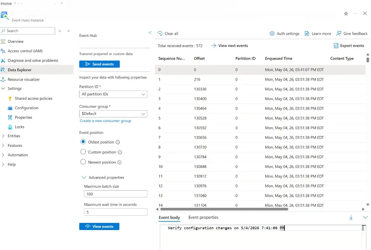
If nothing appears, the usual causes are a wrong hostname, a connection string copied from the Namespace rather than the Event Hub instance, or an entity definition name that doesn't match. Fix it here. Everything downstream depends on events actually landing.
Step 5. Transform the stream with Stream Analytics
- In the resource group from Step 1, create a Stream Analytics job resource.
- When the deployment finishes, go to the resource, then Job topology > Query.
- On the Query page, add an Input of type Event Hub. Use the Event Hub namespace and Event Hub name from Step 1.
- Add an Output of type Power BI. For Authentication mode, use Managed Identity: System assigned.
- Add the query below, replacing
[YourOutputName]and[YourInputName]with the names you gave the output and input.
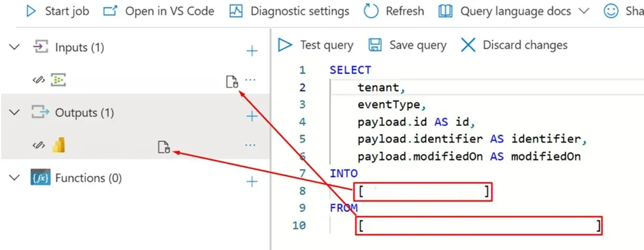
The query flattens the event envelope into fields Power BI can chart:
| Field | What it gives you |
|---|---|
tenant | Which Content Hub environment the event came from |
eventType | The action - saved, deleted, initialized |
id | Entity ID, for counting distinct entities |
identifier | Human-readable identifier, which usually carries the definition and name |
modifiedOn | Timestamp, for anything time-series |
Test the query, save it, then start the Stream Analytics job. After a few minutes a streaming dataset appears in your Power BI environment.
Step 6. Build the Power BI report
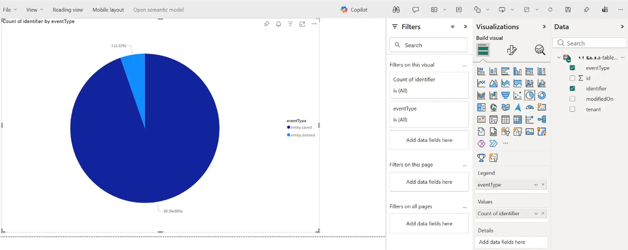
Build against the streaming dataset as you would any other. A pie chart on eventType split by saved and deleted is the fastest way to prove the pipeline end to end.
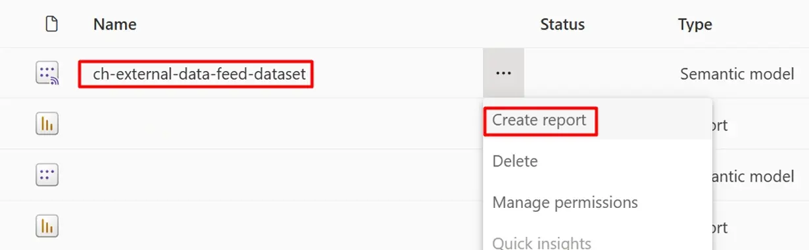
From there, the reports people actually ask for: count of id over modifiedOn for production volume over time, identifier parsed to give activity by definition or brand, and tenant as a slicer if you run more than one environment.
Insights
Getting the pipeline working is the easy part. Deciding what it's for takes longer, and a few things are worth settling before you build reports on top of it.
This does not replace your audit logs. External Data Feed extracts event data for analysis. It is not the system of record. Content Hub's reporting logs, raw audit logs, and user logs remain the source of truth. If someone asks who changed what and when for a compliance reason, the answer comes from the audit log, not from Power BI. Be clear about that with stakeholders early, because a dashboard tends to acquire authority it was never designed to carry.
Check whether you need this at all. Superusers can build reporting pages with charts directly in Content Hub, and Google Tag Manager already shares information with tools like Google Analytics. If the question is "what are users doing in the interface", GTM is the shorter path - see the recipes on tracking downloads and search terms. External Data Feed earns its setup cost when you need Content Hub data sitting alongside data from other systems: campaign performance, spend, PIM, ecommerce. Consolidation is the reason to do this, not reporting on its own.
Scope narrowly and revisit it. Every definition you add to the Export setting increases event volume, and volume costs money in Event Hubs and Stream Analytics. Start with the definitions that answer a question someone is currently asking. Add more when a new question turns up. Turning everything on because you might need it later is how these projects get quietly switched off six months in.
Streaming datasets hold a rolling window. Power BI streaming datasets are not long-term storage. If you need year-over-year trends, add a second Stream Analytics output writing to Blob Storage or SQL alongside the Power BI one. Do this at setup as you cannot retrofit history you never captured.
Plan your baseline. Change events start from the moment you switch the feed on, so a report built on saves alone tells you nothing about the content that already exists. Use re-export to send entity.initialized events and seed the baseline, then decide how the downstream system handles them - establish a baseline if none exists, replace what's there, or ignore them. Make that decision before the first re-export, not after.
Related Recipes
Related Documentation
- For recipe suggestions, questions or feedback, please use the form.
- For direct contribution, please create a pull request on the Github repository for review.